Tenant portal guide
A tour of what you can see and do once your property manager gives you access.
Last updated
Your dashboard
Signing in takes you straight to your dashboard: your unit and lease end date, your current balance, when your next payment is due, how many maintenance requests are open, and any unread announcements. Quick action tiles jump straight to paying rent, requesting a repair, messages and documents.
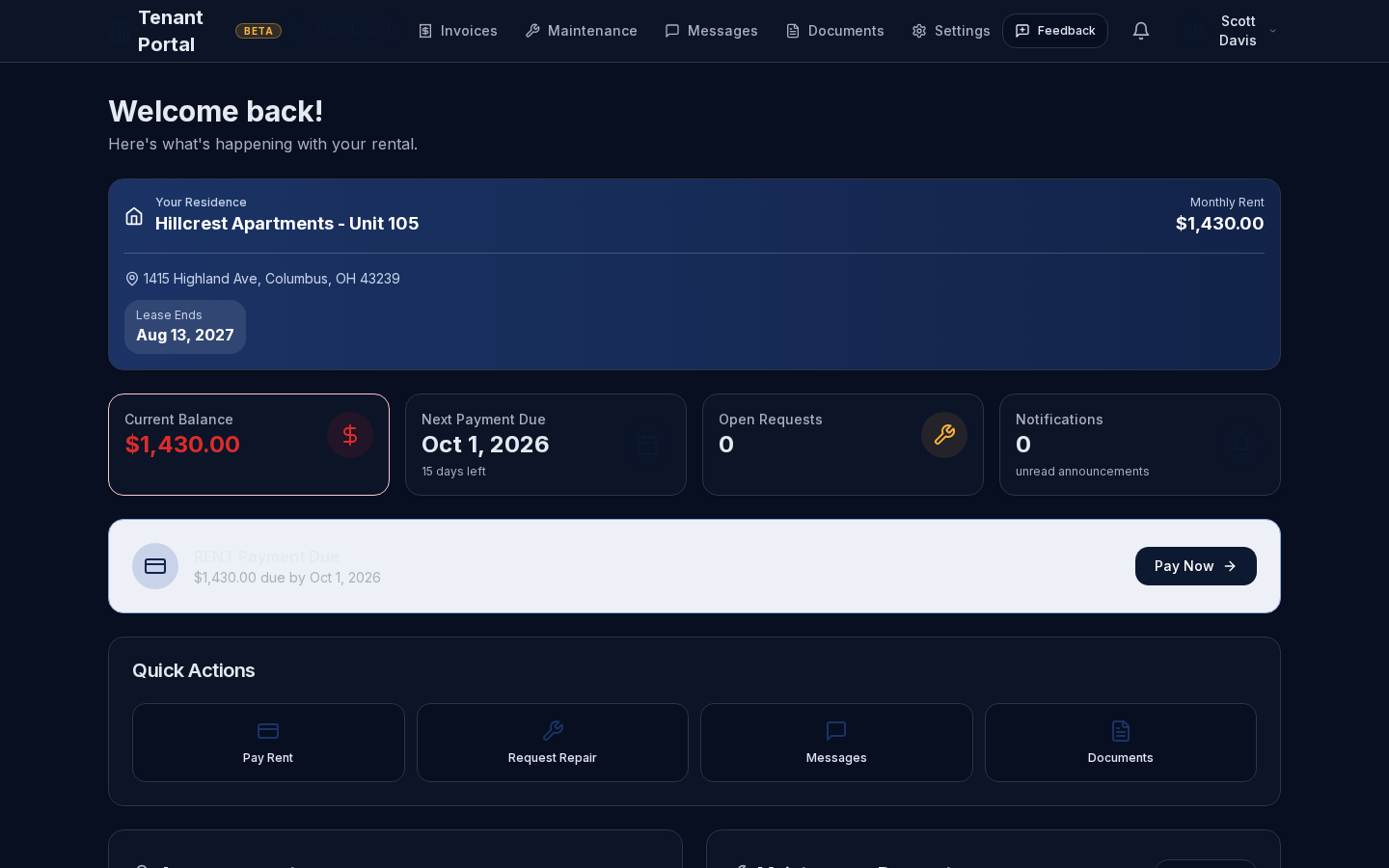
Payments
Online rent payments are a separate feature that your property manager turns on — see Paying rent for exactly what that looks like, including what you'll see if it isn't turned on yet.
Maintenance
Submit a repair request with a description, category, priority and photos, then track it through to completion. See Maintenance requests for the full walkthrough.
Messages
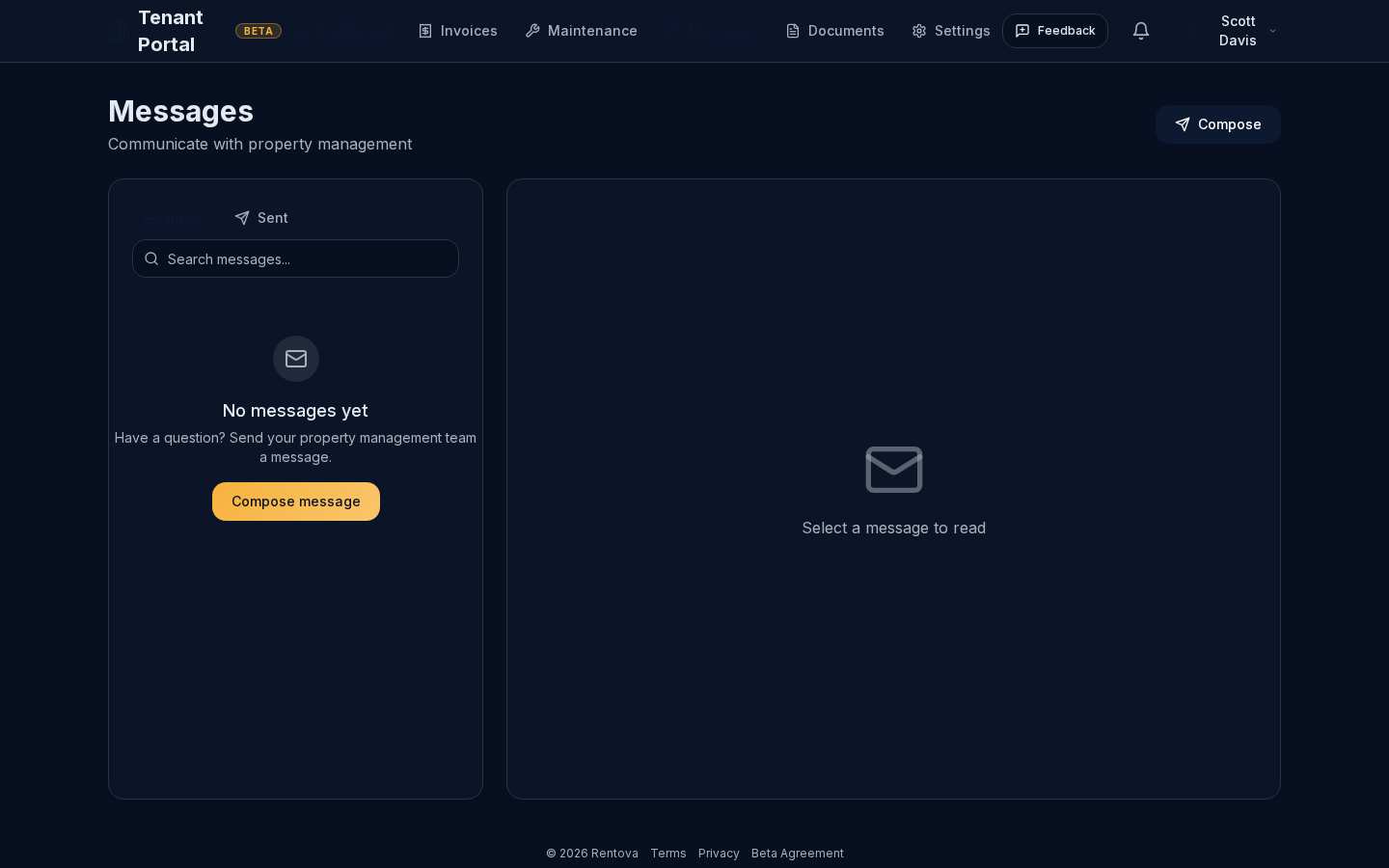
Messages go straight to your property management team — there's no recipient to pick. Compose a new message, reply in a thread, and attach files where needed.
Documents
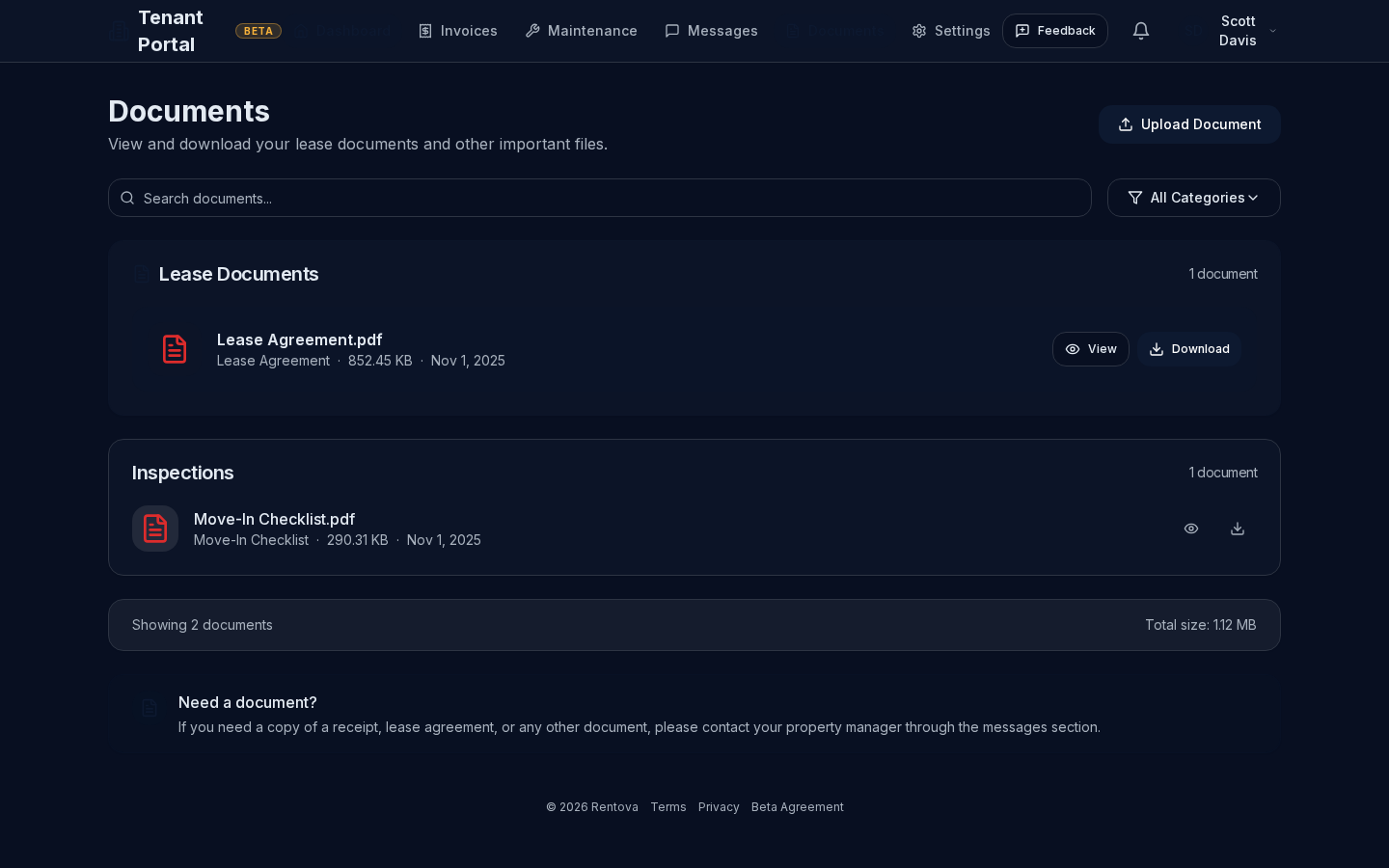
Your documents page shows anything shared with you — typically your lease agreement and any move-in inspection report — grouped by category, with view and download links. You can also upload your own documents; anything you upload can only be deleted by you.
Notifications
A running feed of everything relevant to you — payments due or received, maintenance updates, lease renewals, new messages and announcements — each one linking straight to the right page. Mark items read individually or all at once.
Settings
Update your name and phone number, and change your password, from Settings. Your email address is set by your property manager — ask them if it needs to change.
Two-factor authentication and an active-sessions view are both listed as coming soon and aren't available yet. For exporting or deleting your own data, see Exporting or deleting your data — that page is candid about what's self-service today and what still requires contacting support.